

The waitlist holds clients waiting for a time that is not free yet. When a booking is cancelled, the freed time is offered to a matching client automatically. You can also offer a time by hand.
Add someone
-
Open Appointments, then Waitlist.
-
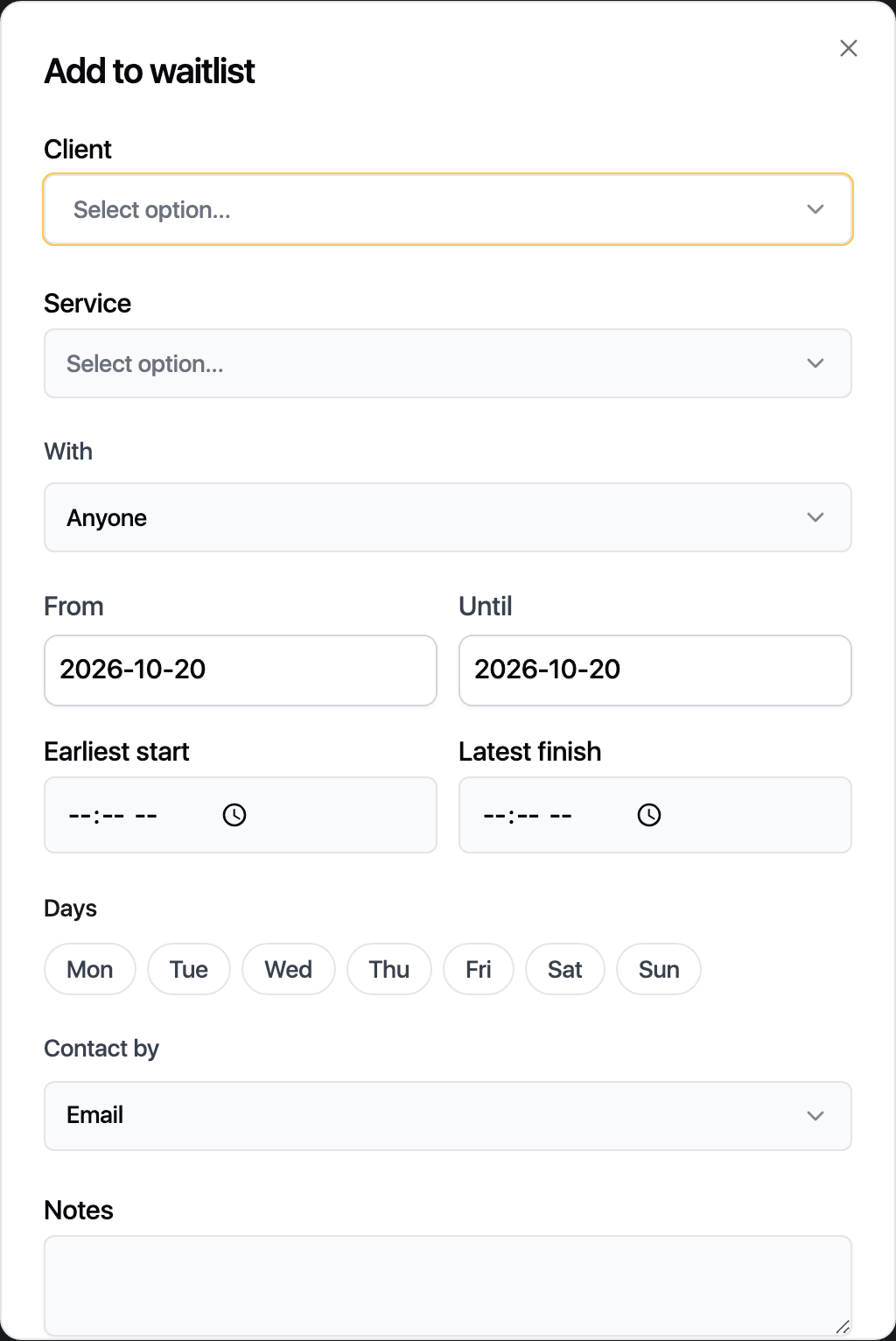
Click Add to waitlist.
-
Pick the Client and the Service. Under With, leave Anyone or pick a staff member.
-
Set the dates with From and Until. Narrow the time of day with Earliest start and Latest finish, and the Days they can come.
-
Choose Contact by: Email or Text message. Offers go out that way.
-
Click Add.
The row shows Waiting. Clients can also join from the booking page or their account, and the row says so.
Offer a time
- Click the row.
- Set the Day, Start and With, then click Send offer.
The status changes to Offered with a countdown. The client accepts by link or by replying YES to the text, and the booking is created. An offer that runs out moves on to the next matching client.
To take someone off, use the X at the end of the row and confirm with Take off.
Related guides
Updated October 20, 2026