

A class is a service booked as a group, with a seat count, an instructor and a room. Clients book a seat online or you add them at the desk. Set the service's Booked as to Class in the catalog first.
Schedule it
-
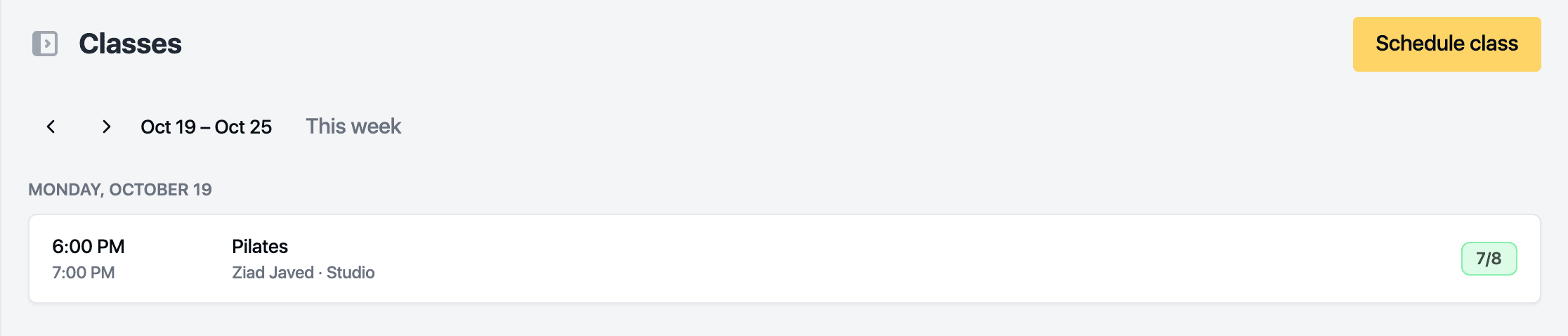
Open Calendar, then Classes.
-
Click Schedule class.
-
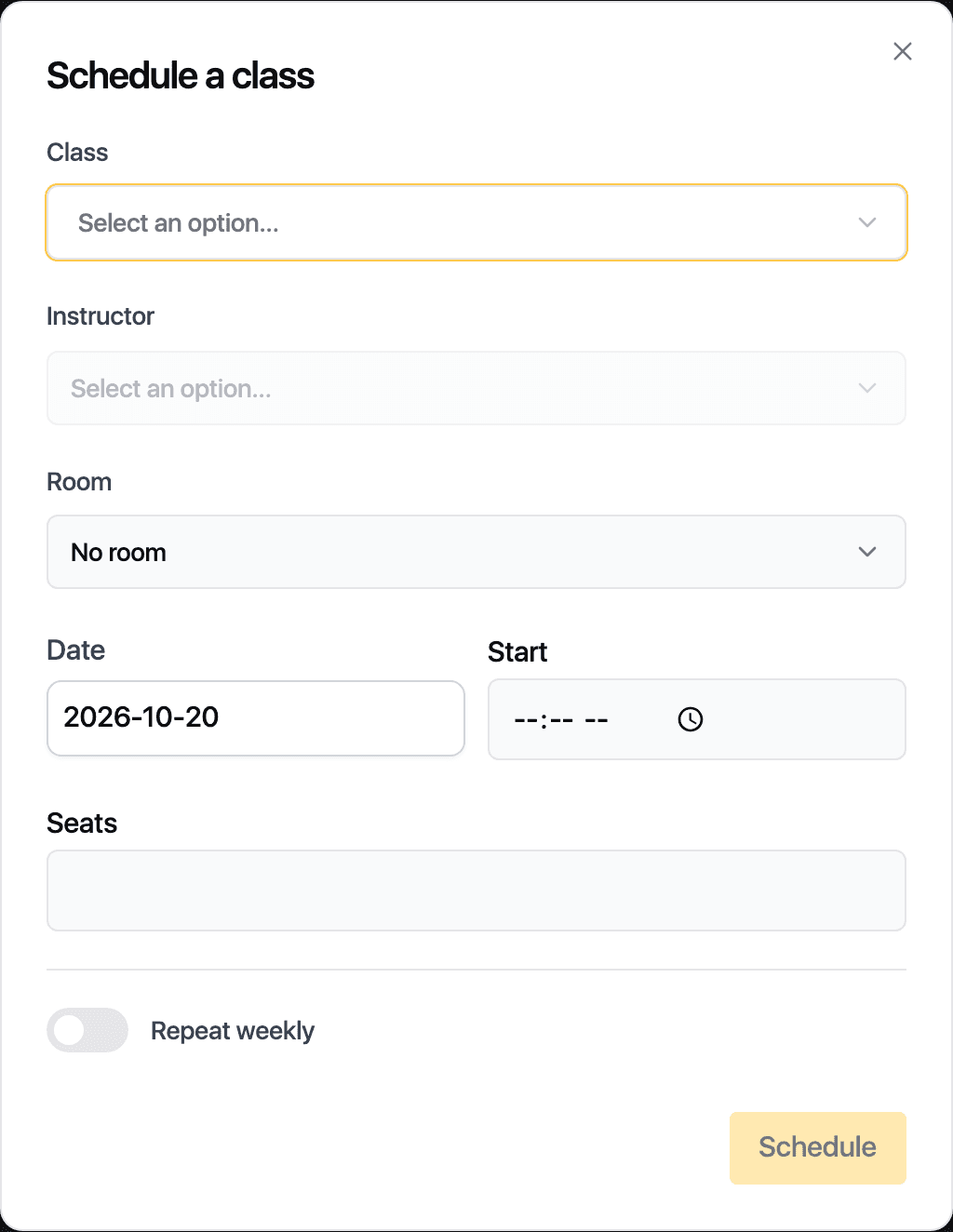
Pick the Class. Only services booked as a class appear.
-
Pick the Instructor and the Room. The room defaults to the one the service needs.
-
Set the Date, the Start time and the number of Seats. Seats come prefilled from the service.
-
For a weekly class, turn on Repeat weekly and set how often and how many classes to create.
-
Click Schedule.
The list jumps to the week of the first session. Each row shows how many seats are taken.
Run the session
Click a session to open it.
- Add a client books a seat. A client holding a pack for this class can pay with it; otherwise they pay on the day. When the class is full, the same control adds them to the waitlist.
- Mark each attendee Attended or No-show, or Remove them while they are still only booked.
- Change the Instructor at the bottom of the drawer. Attendees are told.
- Cancel class asks for a reason, tells everyone and returns pack sessions.
Related guides
Updated October 20, 2026