

Every booking has a page with its status, schedule, services, forms, messages, notes and billing. Open it by clicking the booking on the calendar or in the Appointments list.
Find a booking
-
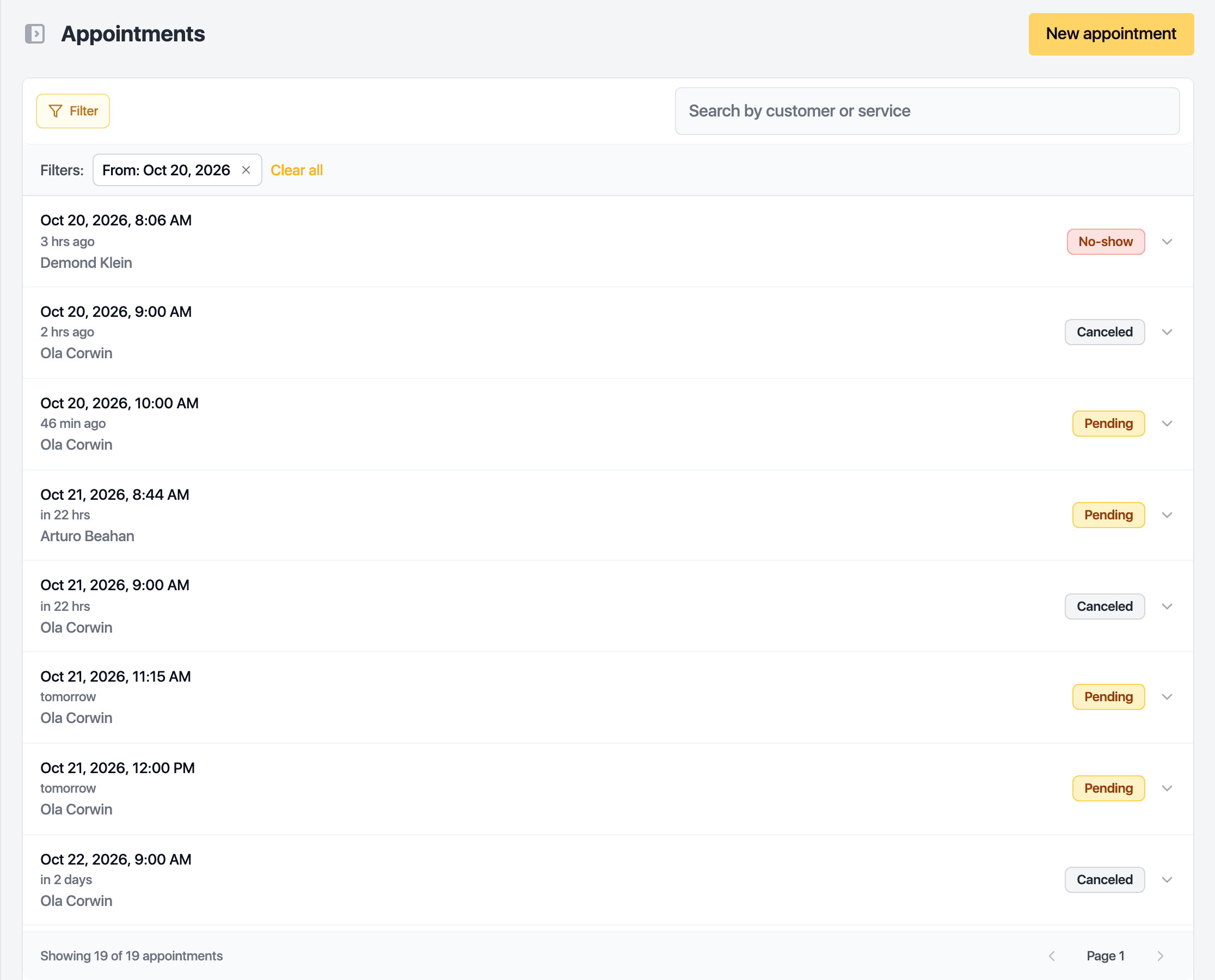
Open Appointments in the sidebar.
-
Search by client or service, or click Filter to narrow by date range, status, staff member or location.
-
Click the row.
Change the status
-
Use the step bar under Status: Pending, Confirmed, In progress, Completed. Mark as holds Cancel appointment and Mark as no-show.
-
Click Save in the bar that appears at the top.
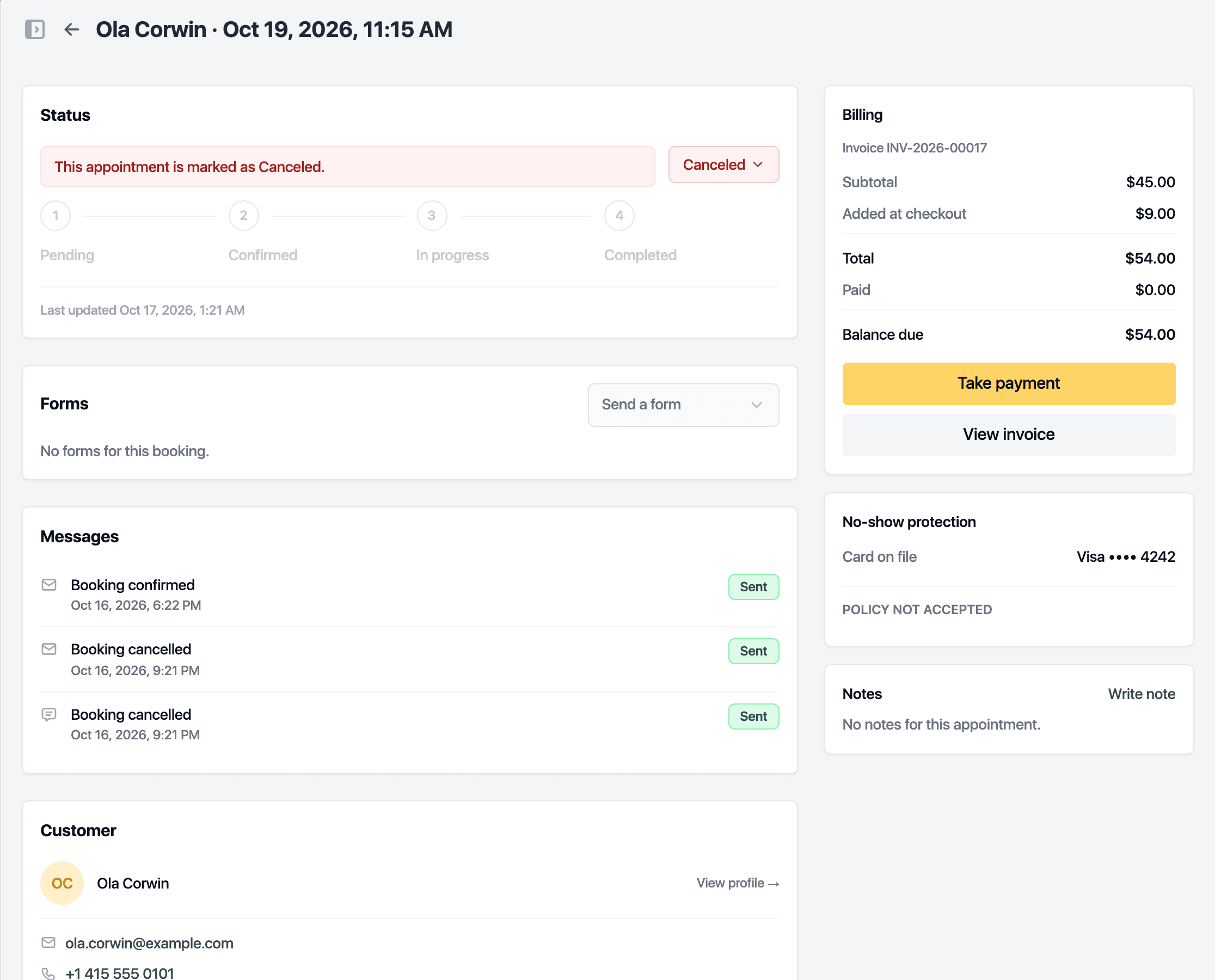
A no-show, or a cancellation inside the cutoff, with a fee attached asks you to confirm first and then charges the card on file. If someone on the waitlist fits the freed time, they are offered it automatically.
Move or change it
- Reschedule under Schedule picks a new date and time.
- Under Services, add a line, change the quantity, duration, price, discount, staff member, resources or the package it draws from, or remove a line.
- A booking that is part of a series shows which visit it is. From there you can cancel this one, or this one and the rest.
- A finished or paid booking locks its services, prices and time. Notes stay editable.
Take payment
The Billing card shows the subtotal, discount, paid amount and balance due. Take payment opens the payment drawer. While the appointment is in progress, the button also offers to complete it at the same time. Once paid, the card reads Paid in full and View invoice opens the PDF.
Forms, messages and notes
- Forms sends a form to the client, reminds them, opens it to fill in at the desk, waives it or downloads the signed PDF. A booking that still needs a form before check-in carries a badge in the header.
- Messages keeps the text thread with the client for this booking.
- Notes are for the team. The client never sees them.
Related guides
Updated October 20, 2026