

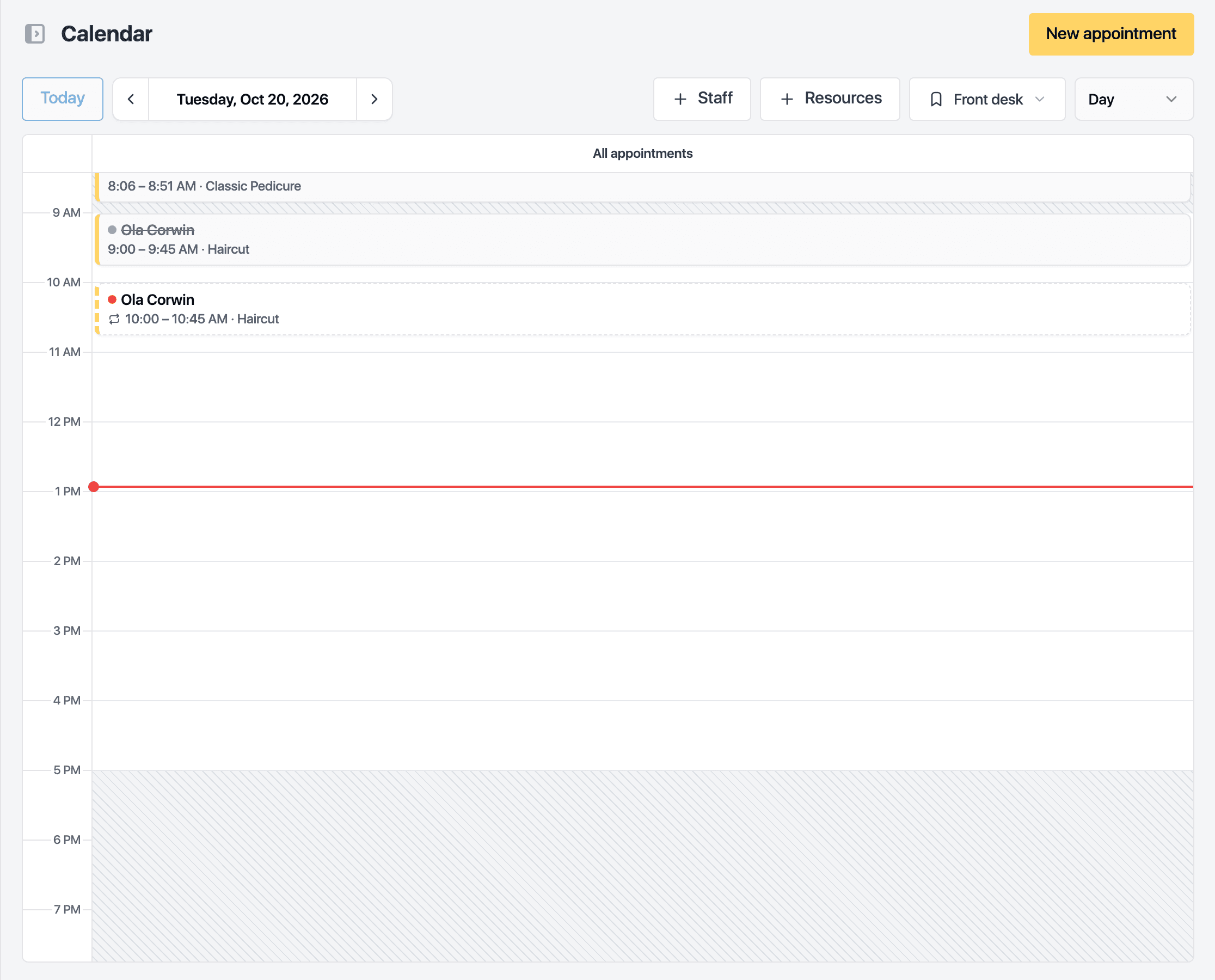
The calendar shows bookings by day, two days, week or month, in a lane per staff member or resource. New bookings start from the calendar or from the Appointments page and use the same drawer.
Book a visit
-
Click New appointment, or click an empty slot on the calendar. A slot click fills in the time and the staff member of that lane.
-
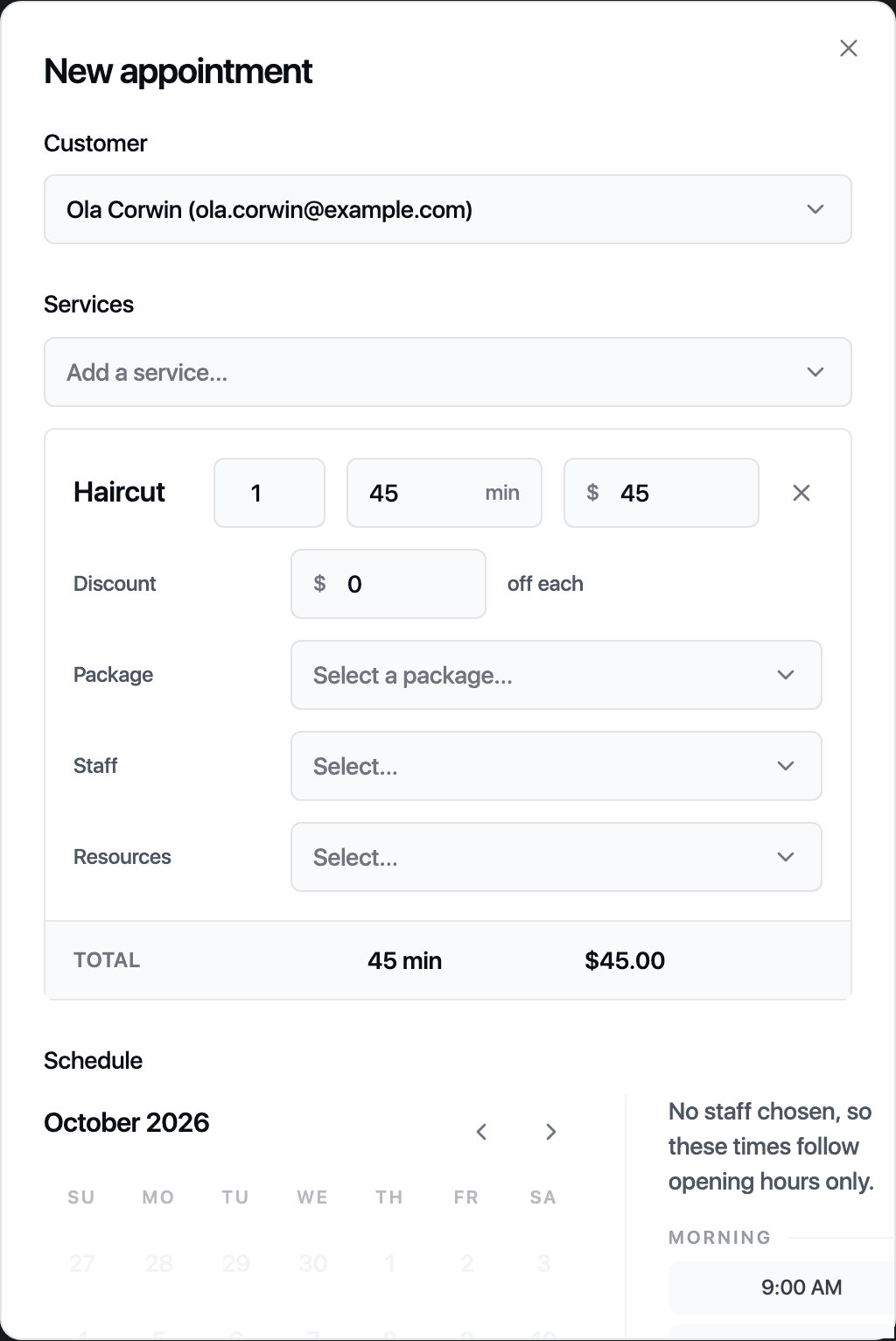
Pick the Customer. Type a name or email. A client not in your records yet can be created from the same field with Create customer.
-
Under Services, click Add a service and choose one. Add another line for a second service. Each line can carry its own staff member, resources, discount or a package the client holds.
-
Under Schedule, pick the date and one of the free times. Free times come from the service length and the staff member's hours.
-
Turn on Collect card to store a card for deposits and no-show fees. Tick the box confirming you read the cancellation policy to the client.
-
Add Notes for the team if needed. The client does not see them.
-
Click Create appointment.
The booking appears on the calendar and in the list. The client receives the confirmation set in your message templates.
Book a repeating series
Turn on Repeat in the drawer. Set how often, the weekdays, and either a number of visits or a last date. Preview dates lists every visit so you can keep, skip or move single dates before anything is booked. The button then reads Book N visits.
Hold a time for the client to finish
Send express link at the bottom of the drawer holds the slot and sends the client a link to complete the booking themselves. Open holds show as express holds at the top of the Appointments page, where you can copy the link again or release the time.
Move bookings on the calendar
Drag a booking to another time or lane to reschedule or reassign it. Drag its lower edge to change the length. Both save straight away. Views saves the mode and the staff and resources you have selected, for yourself or shared with the team.
Related guides
Updated October 20, 2026