

Every sale is an invoice. Appointments, packages, memberships, gift cards and products all create one. Payments are recorded against the invoice, in the drawer that opens from an appointment, a client record or Finances.
Record a payment
-
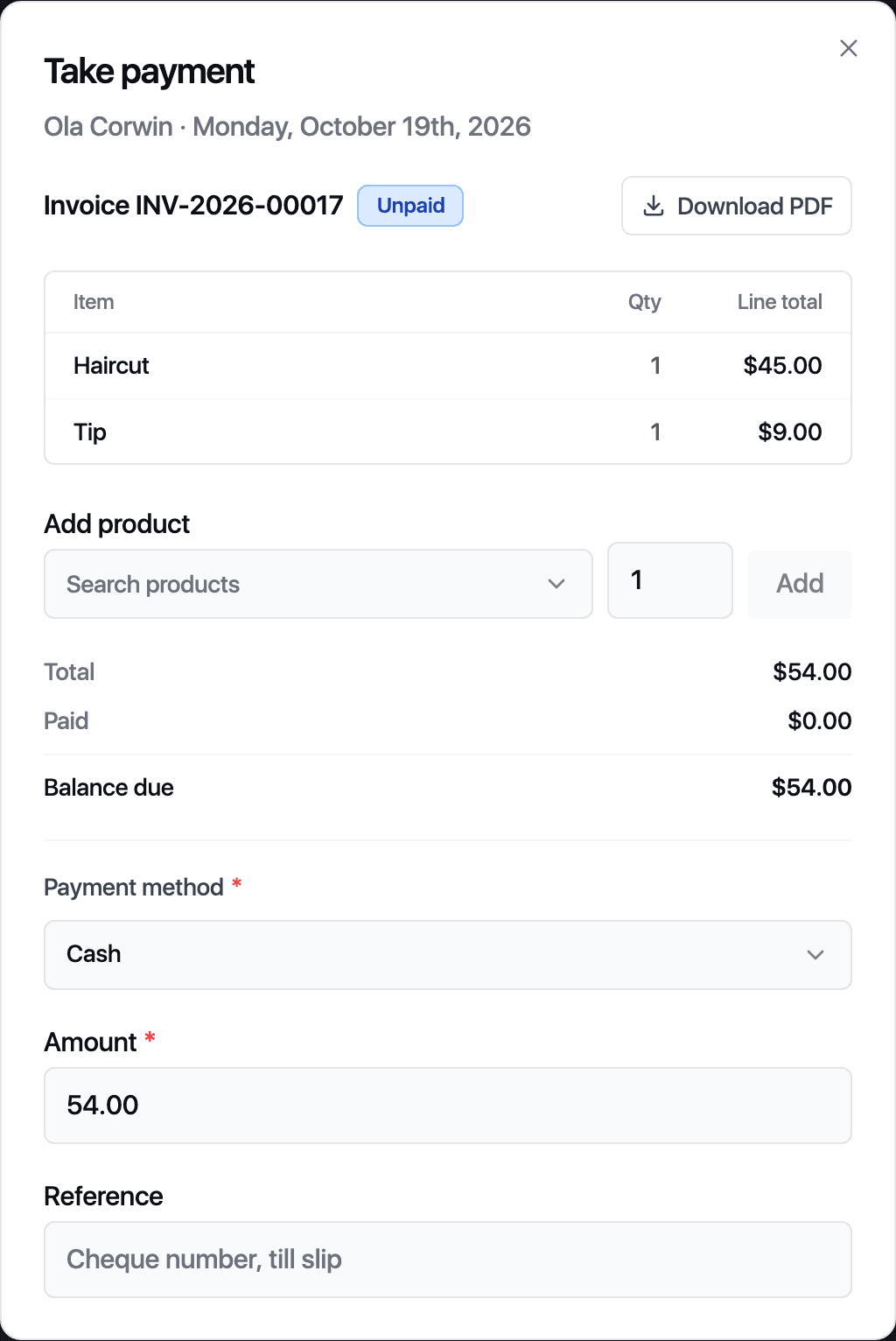
Open the invoice. From an appointment, click Take payment in the Billing card. From Finances or a client record, click the invoice row.
-
Check the lines. At checkout you can still add a product or a tip.
-
Pick the Payment method: Cash, Card (online) when Stripe is connected, Card (keyed in), Bank transfer, Gift card or Other.
-
For a gift card, enter the Gift card code and click Check to see the balance. For an online card payment, enter the card details.
-
The Amount defaults to the balance due. Lower it for a part payment. Add a Reference such as a till slip number if you want one.
-
Click Take payment.
Once the balance reaches zero the drawer reads Paid in full and offers Book next visit. Download PDF gives the client a copy.
Refund
Open the invoice. Under Payments, click Refund on the payment. Set the Amount to refund, add a Reason, and for a product line tick Return to stock. Click Refund.
Find money later
Finances in the sidebar has four tabs.
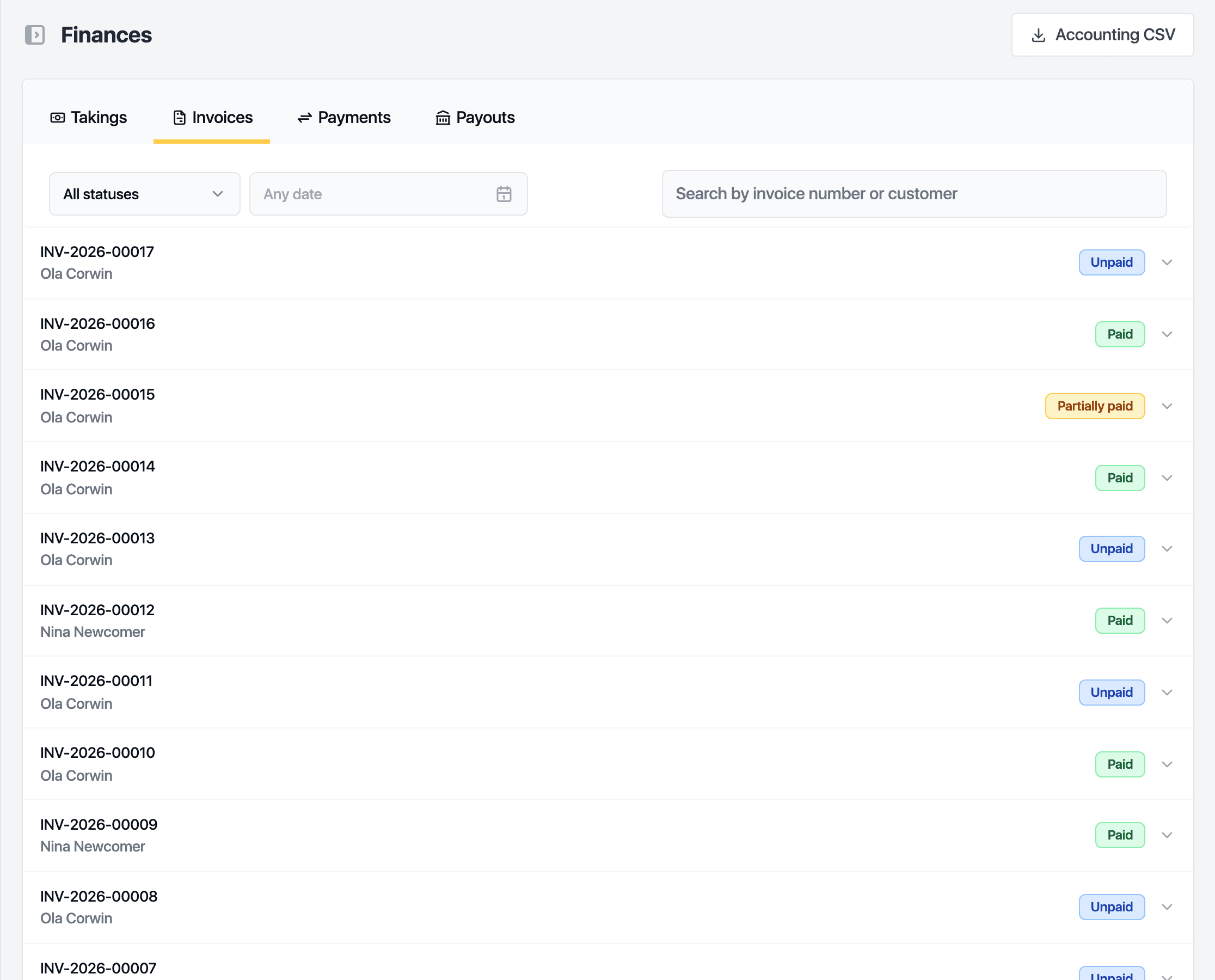
- Takings: totals for a date range by payment method, card processor and location.
- Invoices: every invoice, filterable by status, date and location.
- Payments: every payment, refund, adjustment and write-off.
- Payouts: what Stripe has settled and what is on its way to your bank.
Accounting CSV at the top exports a date range for your bookkeeper.
Related guides
Updated October 20, 2026