

Gift cards carry a balance that any client can spend at checkout. Each card has a code, and the recipient gets it by email.
Turn gift cards on
Gift cards are off until you switch them on.
- Open Catalog, then Gift cards.
- Click Settings.
- Turn on Sell gift cards.
- Set the preset Amounts, and the lowest and highest custom amount if you allow other values.
- Set Expires after (days), or leave it on Never. Many US states and EU countries restrict gift card expiry, so check local rules first.
- Add your Terms if you have them, then save.
Sell a card
-
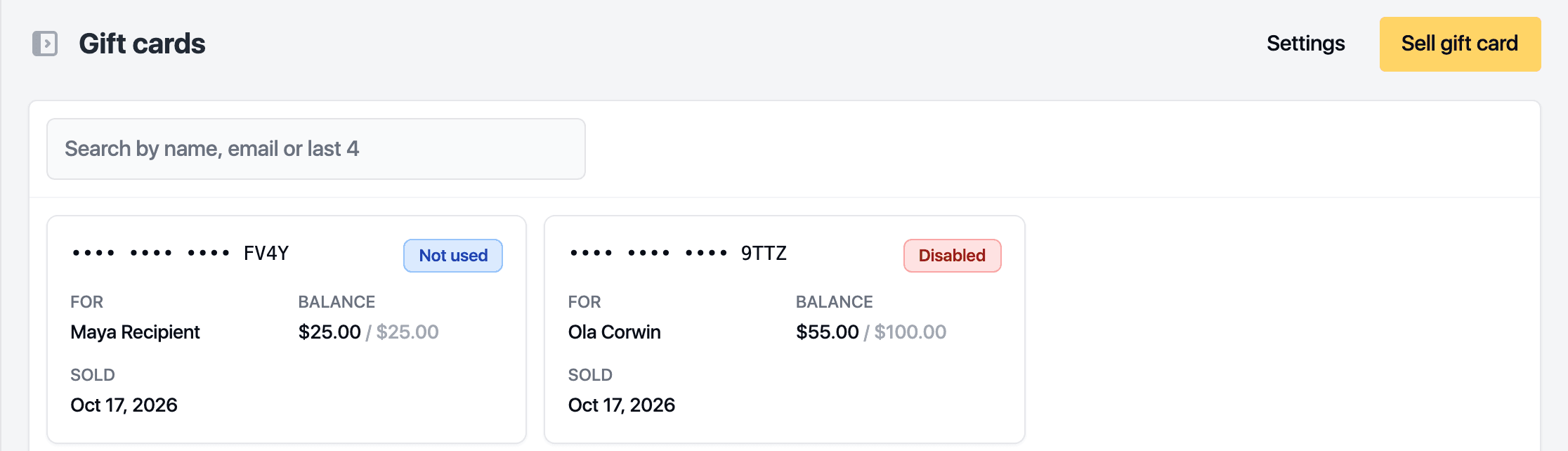
On the Gift cards page, click Sell gift card.
-
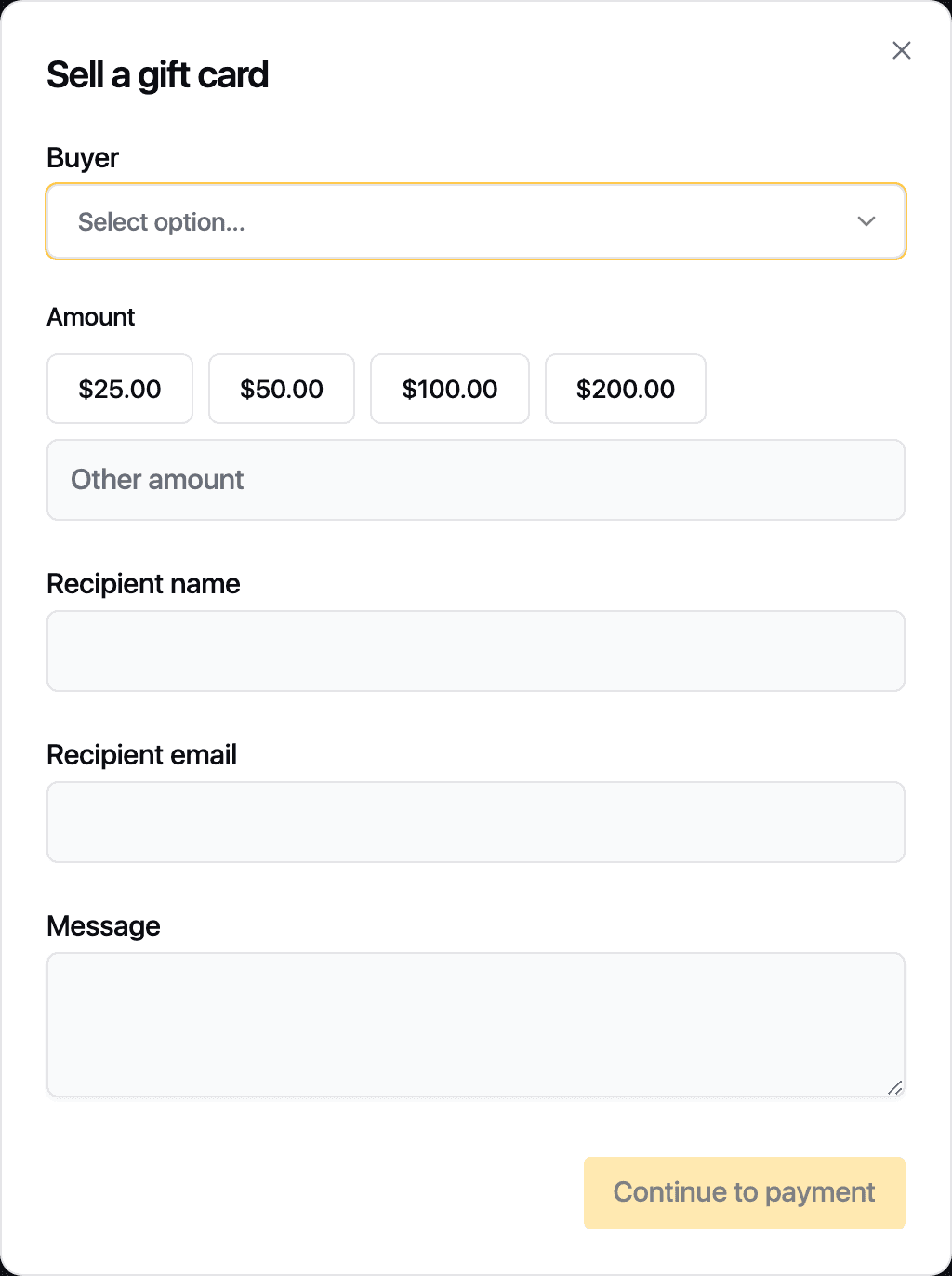
Pick the Buyer from your clients.
-
Choose an Amount, or pick Other amount and type one.
-
Enter the recipient's name and email, and a message if the buyer wants one.
-
Click Continue to payment and take the payment the way you would for any sale.
Once the sale is paid, the card is emailed to the recipient. It appears in the list with its balance and status. Use Resend email if it did not arrive, or Disable with a reason if the card should no longer be spent.
Take a gift card as payment
At checkout, open the invoice and enter the Gift card code. Click Check to see the balance, then apply it. Any balance left stays on the card for next time.
The Unspent balance figure on the Gift cards page shows what is still outstanding across all cards.
Related guides
Updated October 20, 2026