

Products are sold at checkout or from a client record. Stock is counted per site and every change is kept in a history.
Add a product
-
Open Catalog, then Products.
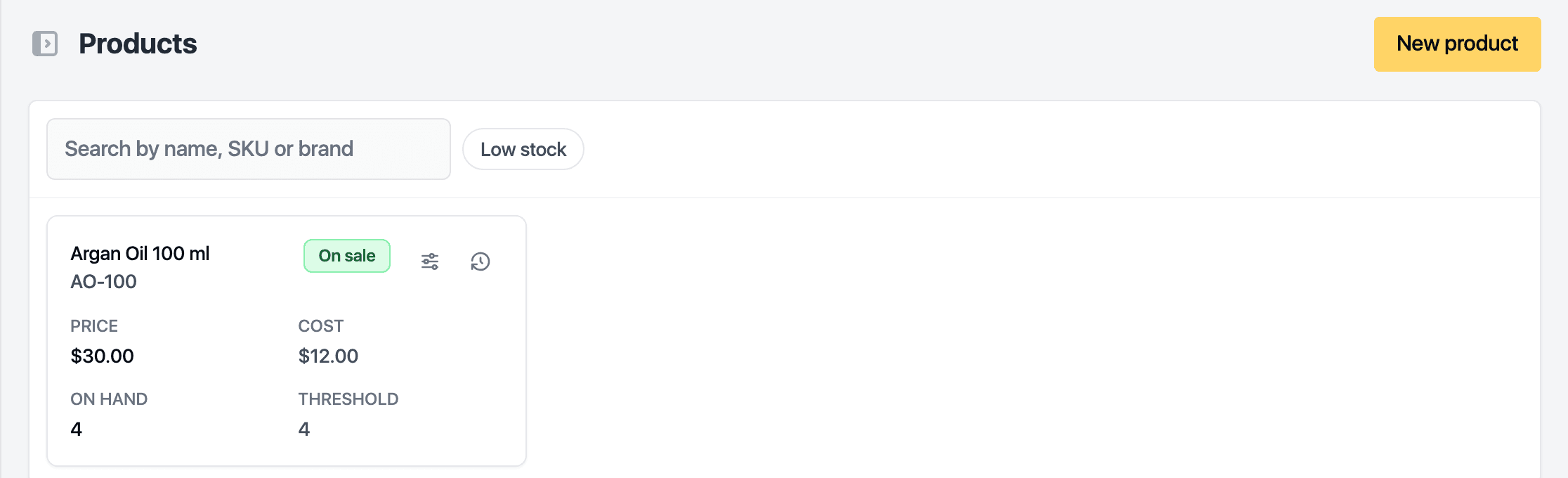
-
Click New product.
-
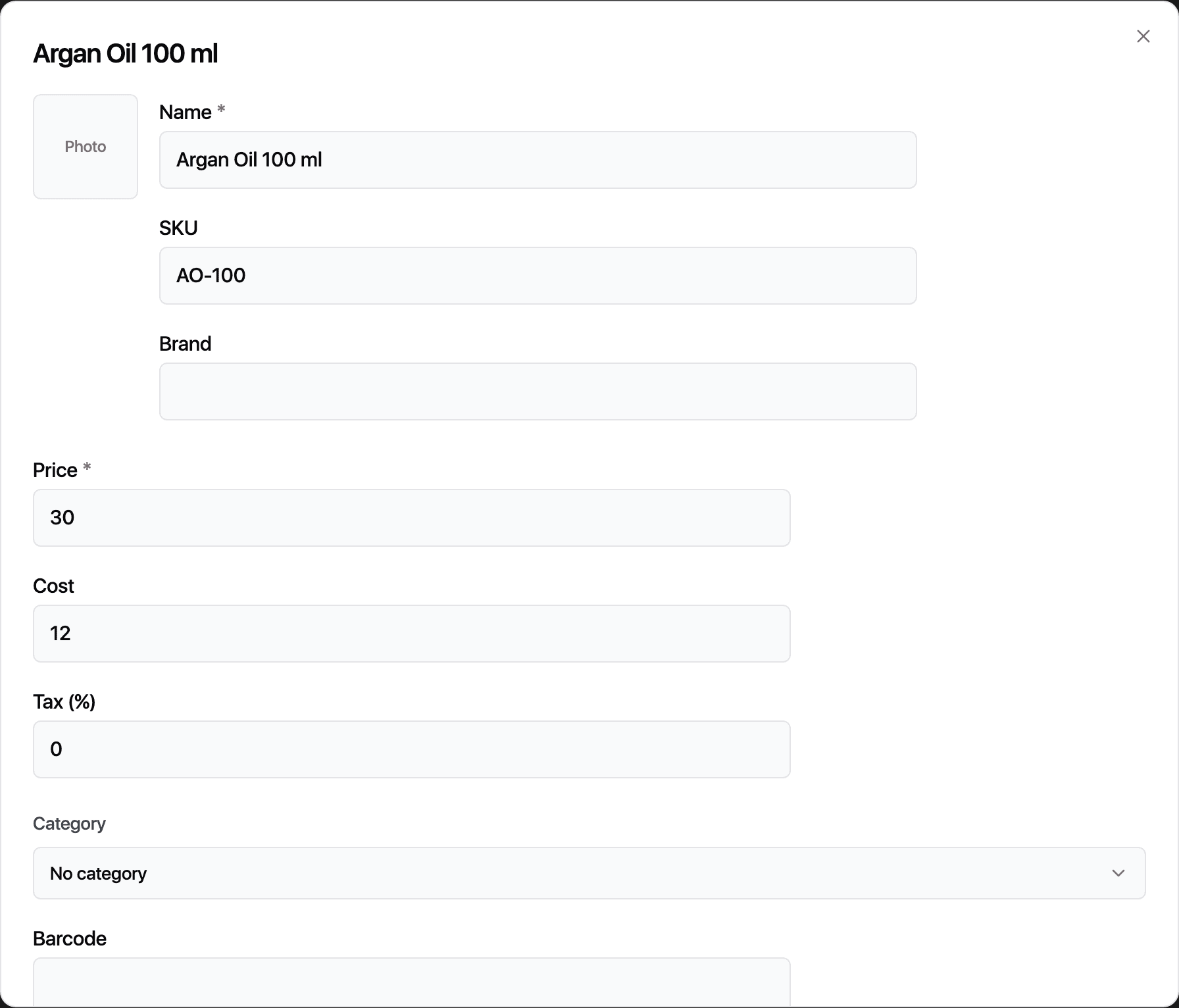
Enter the Name and Price. SKU, Brand, Cost, Tax (%), Category, Barcode and Description are optional.
-
Leave Track stock on to count units. For each site, set the Opening stock, the Threshold that triggers a low-stock warning and the Reorder qty.
-
Click Save. Add a photo after the first save.
Keep stock right
- Adjust stock on a row records a delivery (Received) or a correction (Adjustment, with a minus sign to take stock away). With more than one site, Transfer moves units between them.
- Stock history lists every movement: sold, returned, received, adjusted, transferred or counted.
- Sales take units off automatically. A refund can put them back with Return to stock.
Sell it
Add a product line to any invoice at checkout, or use Sell product on the client's record. The Low stock filter, the Home card and the banner at the top of Home all point at products under their threshold. Archive takes a product off sale and keeps its history.
Related guides
Updated October 20, 2026