

Forms are filled in by the client before a visit, from a link or on a tablet at the desk. Each published version is kept, and a signed form records which version the client saw.
Build it
-
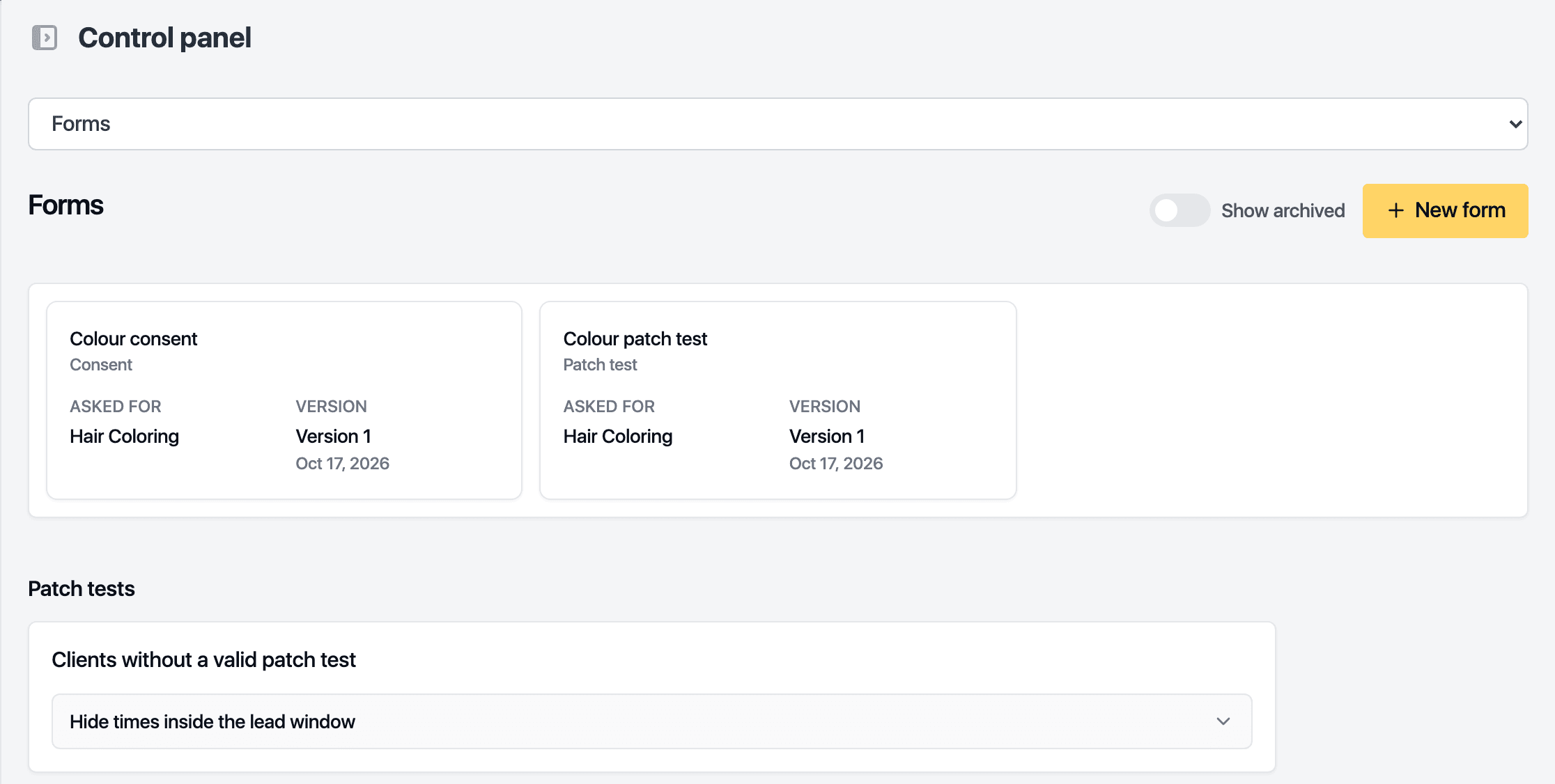
Open Control panel, then the Forms section.
-
Click New form.
-
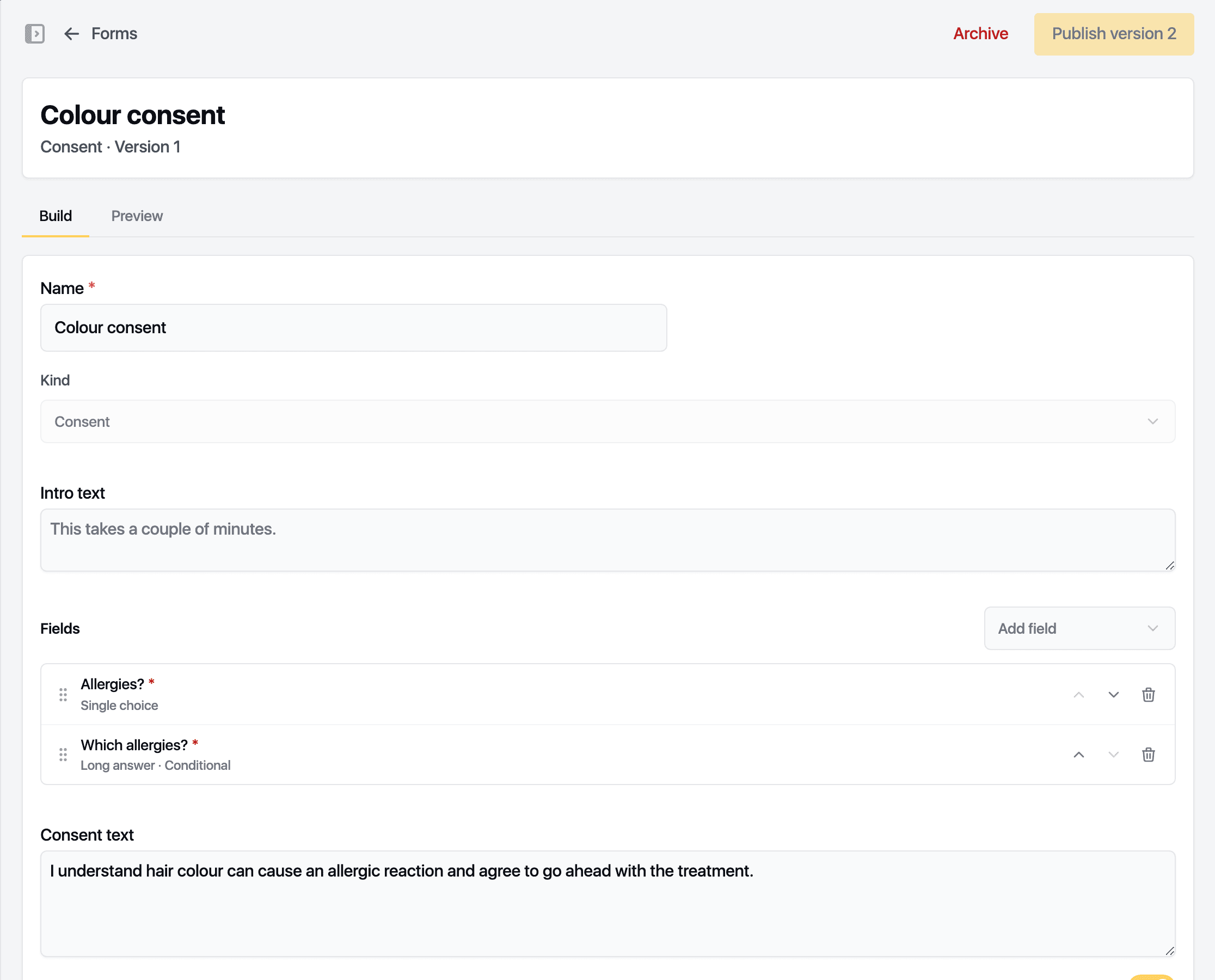
Enter the Name and pick the Kind: Intake, Consent, Waiver or Patch test. The kind cannot change later.
-
Write the Intro text the client reads first.
-
Add fields with Add field: heading, short answer, long answer, single choice, multiple choice, checkbox or date. Mark a field Required. Under Show, make a field appear only when an earlier answer matches.
-
Add the Consent text and leave Ask for a signature on if the client must sign.
-
Check it under Preview, on desktop and phone.
-
Click Publish version 1.
Later edits publish as a new version. Clients who signed an older version keep that one on record.
Decide when it is asked
After the first publish, Ask for it appears.
- Click Add rule.
- Choose Ask for it on: a service, a staff member or every booking.
- Set Valid for (days), or leave it blank for forever. Tick New clients only or Required before check-in as needed. Ask again if signed before a date forces a re-sign after a change in your terms.
- Click Save rule.
A patch test form asks for the hours before the visit instead, and the control panel can hide booking times inside that window for clients without a valid test.
Archive retires a form. Signed copies stay on the client records.
Related guides
Updated October 20, 2026