

Team and Business plansAvailable on the Team and Business plans.
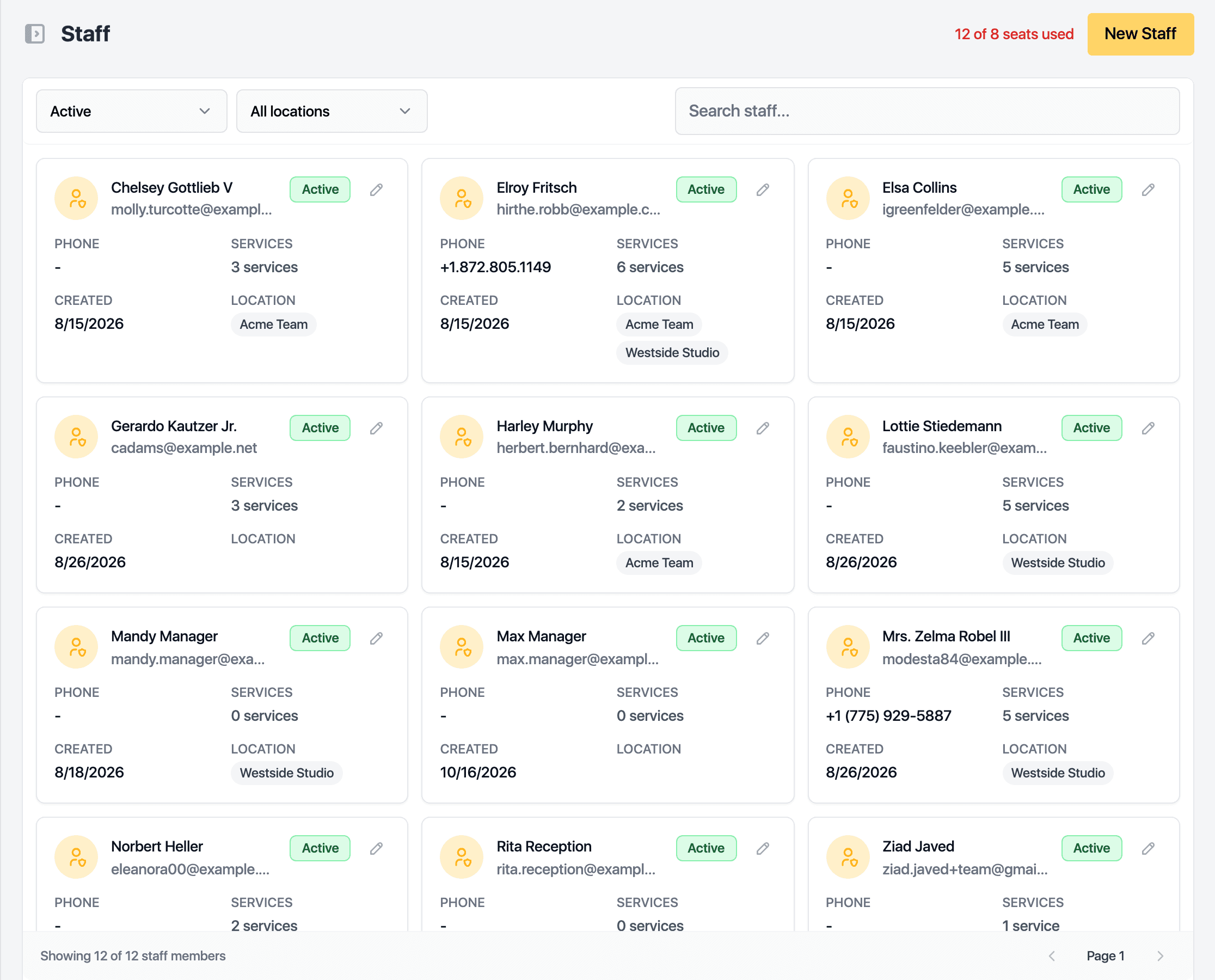
Each staff member uses a seat on your subscription. The counter at the top of the Staff page shows how many are in use. Deactivating someone frees their seat.
Add them
-
Open Staff in the sidebar.
-
Click New Staff.
-
Enter the Name, Email and a Password. They sign in with these. The Phone is optional.
-
Click Save.
When every seat is in use, the button offers to add a seat or compare plans instead.
Set them up
Click the new row to open their page.
- Details: the Role (Owner, Manager, Practitioner or Receptionist) decides what they can see and do. Offered Services lists what they can be booked for.
- Schedule: Working hours per day, which follow the business opening hours until you set specific ones. Time away blocks vacation, sick days and appointments so nobody can book them.
- Online booking: whether clients can pick this person online, the notice needed, how far ahead and the free time around bookings. Each field follows the service setting until changed. Calendar sync connects Google Calendar or Microsoft 365, gives a bookings feed link, and blocks busy time from other calendars.
- Pay: the commission rule, when payroll is on.
- Appointments: their visit history.
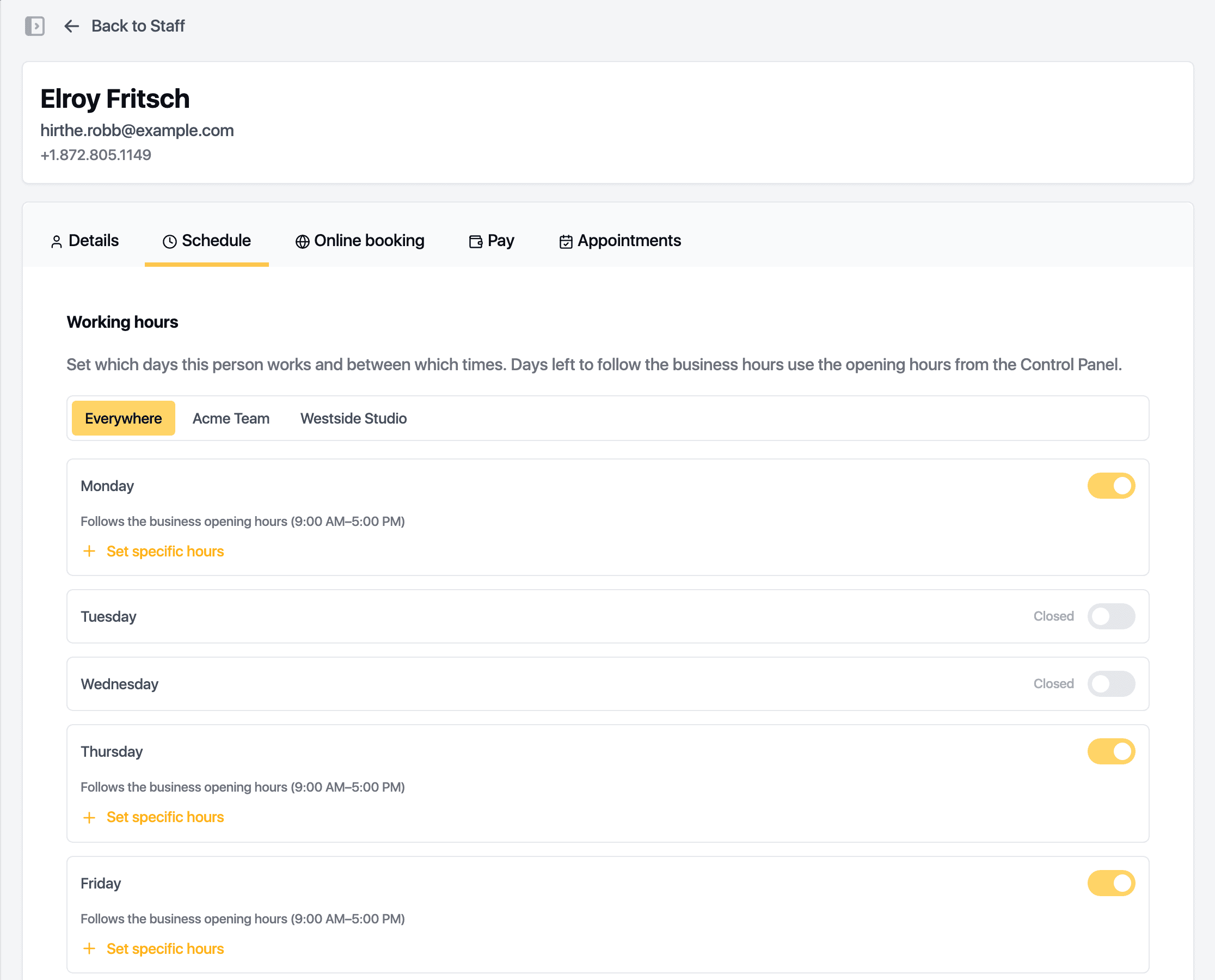
Changes to the Details and Schedule tabs save through the bar at the top.
With more than one site, Locations on the Details tab sets where the person works and their home location, and working hours can differ per site.
Related guides
Updated October 20, 2026