

Services are what clients book. Each one has a duration, a price and a category. Online booking rules can be set per service.
Add the service
-
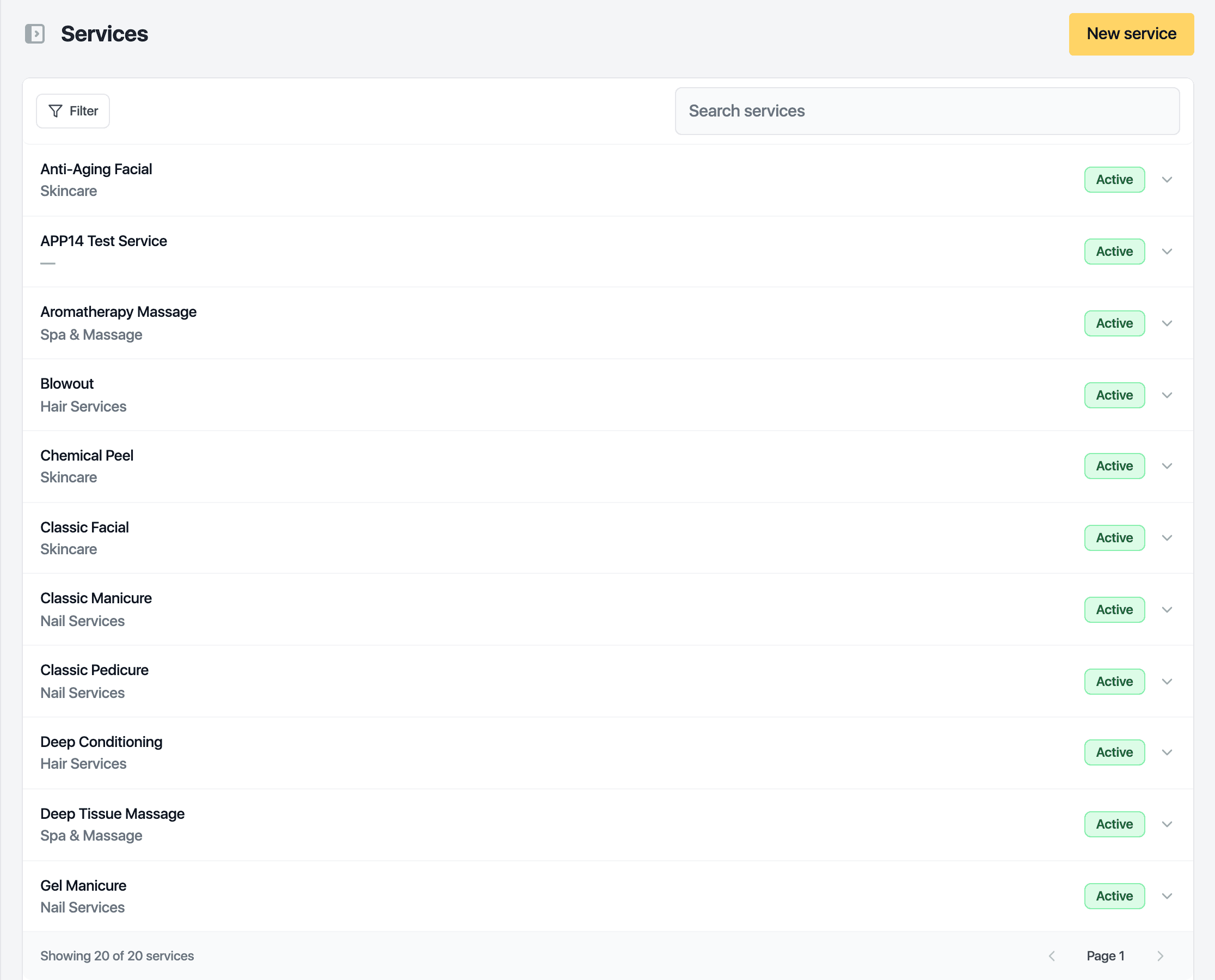
Open Catalog in the sidebar. The Services list opens first.
-
Click New service.
-
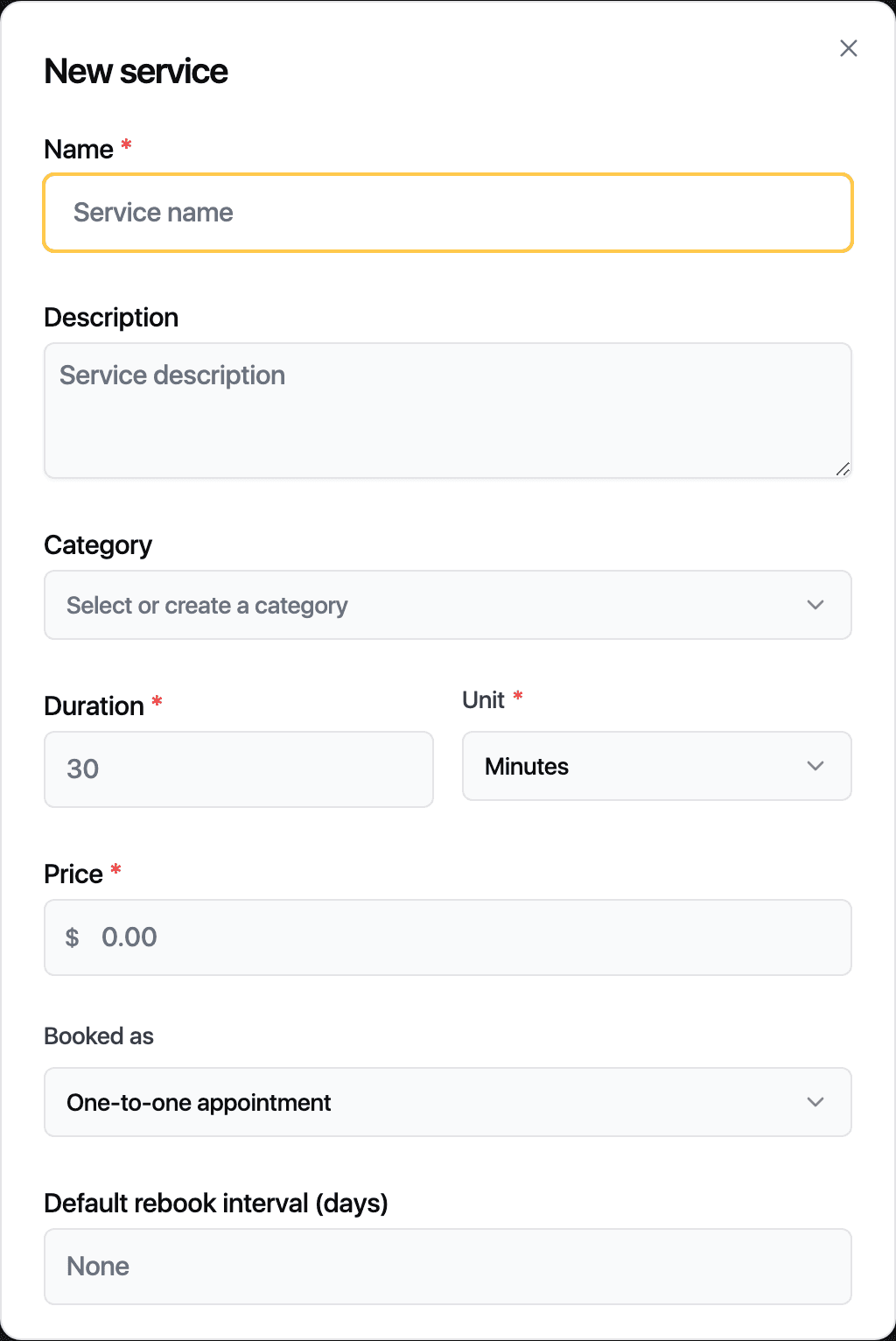
Enter the name. The description is optional.
-
Pick a category, or type a new name to create one.
-
Set the duration in minutes or hours, then the price.
-
Leave Booked as on One-to-one appointment. Pick Class for group sessions. A class also asks for the number of seats, a room and the late-cancel window.
-
Click Save.
The service is now in the list and can be booked from the calendar. If it is bookable online, it also shows on your booking page.
Other settings in the drawer
- Default rebook interval suggests the next visit date when you rebook a client.
- Required forms lists the forms a client must sign for this service. Manage the forms themselves from the control panel.
- Online booking decides whether clients can book the service themselves, who can book it, the notice needed, how far ahead it can be booked and the free time around it. Each field follows your business default until you change it here.
- Booking rules for this service override your general cancellation and reschedule rules. When a booking holds several services, the strictest rule applies.
- Status set to Inactive hides the service everywhere and keeps its history.
Price and availability by location hides the service at a site or charges a different price there. Leave the price blank to use the standard price.
Related guides
Updated October 20, 2026